Job Application Tracker Template for Your Remote Job Search
Use one row per role to record what you applied for, the resume you sent, and what needs to happen next. This job application tracker also records remote-work eligibility so that a saved vacancy does not become an application before you have checked where the employer can hire.
Start with the blank file below. The separate example shows four invented roles at different stages; none is a real vacancy. Both versions are available as an XLSX workbook and a plain CSV. No account or email address is required to download them.
Templates to use with this guide
- Blank tracker workbook (.xlsx)
100 prepared rows, status and work-arrangement choices, table filters, date formatting and frozen headings. Start on row 8.
- Fictional example workbook (.xlsx)
Four invented roles showing preparation, an application, an interview and a closed listing. Use as a reference beside your blank copy.
- Blank tracker (.csv)
The same 16 fields in a simple table for importing. CSV does not include dropdowns, filters, formatting or frozen headings.
- Fictional example (.csv)
Four sample rows with ISO-format dates. The example.invalid addresses are placeholders, not job links.
Get started in five minutes
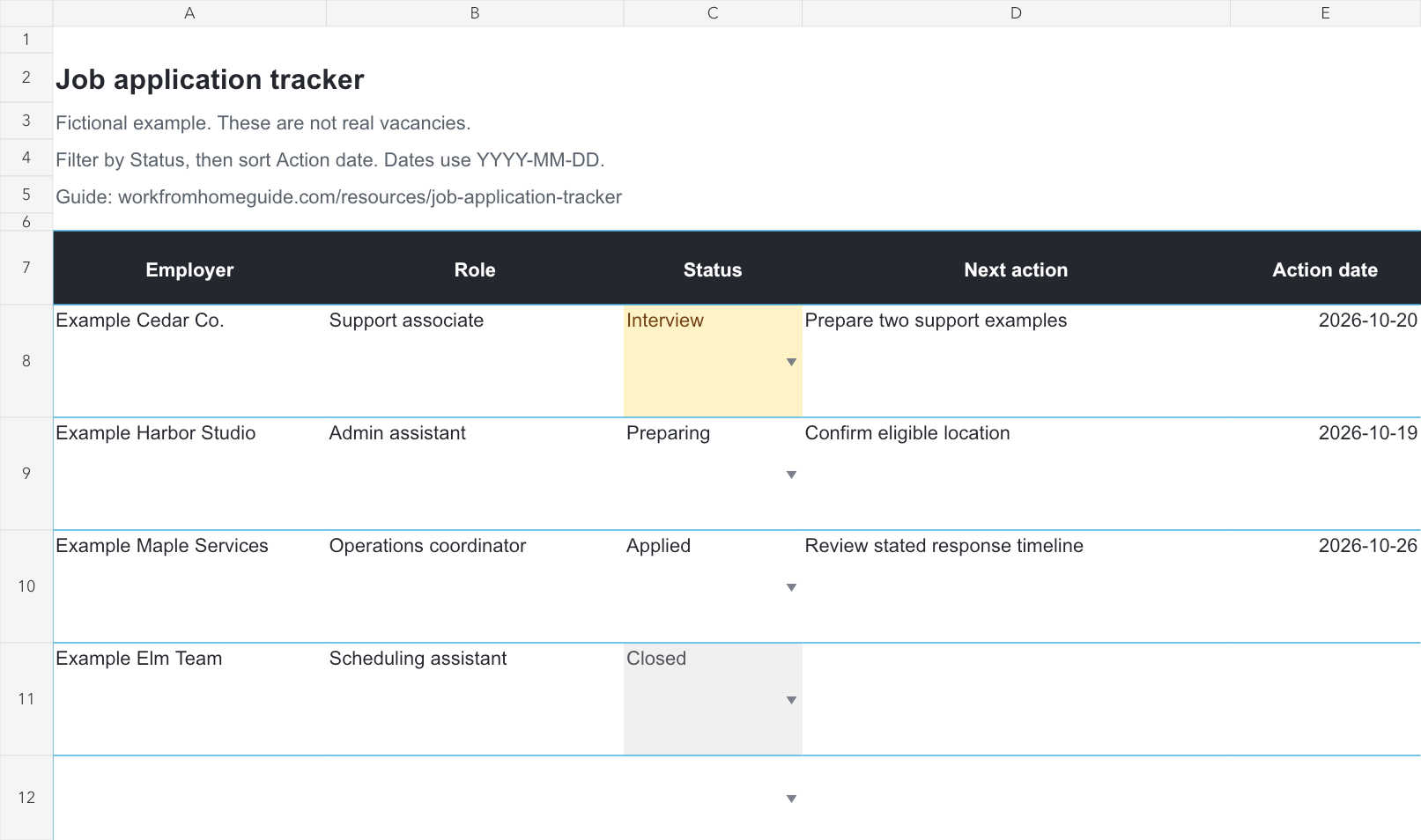
The XLSX has one Applications sheet. Employer, Role, Status, Next action and Action date are the first five columns so that your next task stays visible. Supporting details continue to the right. The preview below shows the example workbook.
The workbook has no macros, external data connections or reminder service. Its dates are editable cells, and its status is a choice you update. Use your calendar for notifications. If you import into another spreadsheet application, check date recognition, filters and dropdowns before relying on them.
- 1Save a private working copy.Download the blank file and give it a recognizable name. Keep the fictional example separate so its entries cannot become part of your application count.
- 2Add one real role.Enter Employer and Role, the official Source URL and the date you found it. Set Status to Saved while you read the requirements.
- 3Record the unresolved question.Write a specific Next action such as “Check whether my state is eligible.” Set an Action date that fits any application deadline.
- 4Update the row after acting.Enter Applied only when you submit. You can record a clearly labeled draft resume while preparing; replace it with the exact submitted filename after applying. Replace the completed action with the next one instead of leaving an old reminder in place.
Know what belongs in each field
Keep unknown facts visibly unknown. A blank closing date means you have not recorded one; it does not mean the employer will accept applications indefinitely. “Remote” alone does not establish that your location is eligible.
| Field | What to enter |
|---|---|
| Employer / Role | The organization and job title as listed. Add the role ID to Notes when available so similar titles stay distinct. |
| Status | Saved, Preparing, Applied, Interview, Offer, Rejected, Withdrawn or Closed. Select the stage supported by what has happened. |
| Next action / Action date | One concrete task and the date you intend to do or review it. This is your plan, not an automatic employer deadline. |
| Eligibility | Allowed country or state, required working hours and any unresolved requirement. Record the rule and whether you meet it. |
| Work arrangement | Remote, Hybrid, On-site or Unconfirmed. Put required office attendance in Notes. |
| Applied | The actual submission date. Leave blank for a saved, unfinished or abandoned application. |
| Resume version | A clearly labeled draft while preparing, then the exact filename sent, such as support-v2.pdf. Keep the submitted file in your private application folder. |
| Source URL | The official vacancy page where possible. A board can be the discovery source; confirm the employer separately. |
| Date found / Closing date | When you found the role and its stated deadline, if known. Add any deadline time and time zone to Notes. |
| Interview and time zone | Date, time and named time zone from the invitation. Confirm conversion in your calendar; do not assume a fixed time-zone offset all year. |
| Last contact | The date of the latest relevant message or conversation. |
| Verification note | What you checked, such as a matching role ID on the employer’s careers page. This records a step, not a guarantee of safety. |
| Notes | Brief context, agreed timelines and factual outcomes. Avoid passwords, identity numbers and copies of sensitive documents. |
Follow one fictional application from start to finish
Follow the fictional “Example Cedar Co.” application to see how one row changes during a search. The workbook shows its status on October 18, 2026; the later steps below show what you would update after that date.
| Event in the example | Update the existing row |
|---|---|
| October 12: a support role is saved | Set Saved, record the source and eligibility question, and leave Applied blank. |
| Before applying: location and requirements are checked | Record the eligibility rule and verification note. Set Preparing while tailoring the resume and support sample. |
| October 14: the application is submitted | Set Applied, enter 2026-10-14 and support-v2.pdf, and save the submission confirmation privately. |
| October 16: an interview invitation arrives | Set Interview and Last contact to 2026-10-16. Record October 21 at 10:00 America/New_York from the fictional invitation. |
| October 20: preparation is due | The next action is “Prepare two support examples.” Confirm the invitation, time zone and meeting link in the calendar. |
| After the interview: outcome is still pending | Keep Interview, record any stated response timeline and choose a sensible next review date. An unanswered message is not a rejection. |
| When a decision is actually received | Record Offer or Rejected as appropriate. Use Withdrawn if you choose to leave the process. Clear completed actions and retain a brief factual outcome. |
Make next actions and follow-ups useful
Filter Status to the active stages you want to review, then sort the entire table by Action date from earliest to latest. Do not sort just the date column, which can separate dates from employers in an ordinary range. The header filters in the XLSX are part of a table; Microsoft’s linked instructions explain how table filters work.
Check active rows with a blank Action date too. A blank date should not make an unanswered eligibility question disappear. Closed, Rejected and Withdrawn rows can stay in your history without daily action dates.
Use the employer’s stated process when deciding whether to follow up. If it asks applicants not to contact it, respect that. If it gave a decision date, record that date and review the situation after it passes. There is no universal number of days that makes a follow-up appropriate for every role.
A short follow-up to adapt when contact is appropriate
Subject: [Role title / reference] application
Hello [name],
I applied for [role] on [date]. You mentioned [timeline or agreed next step]. I am still interested and wanted to ask whether there is an updated timeline or anything else you need from me.
Thank you, [your name]
Remove any reference to a timeline unless the employer actually provided one.
Review applications and next steps
Review the tracker at a regular interval you can maintain. First handle time-sensitive actions, then inspect a few recent applications for fit and completeness. Compare the actual requirements with what you submitted before deciding that more applications are the answer.
In the supplied example there are four recorded roles, two submitted applications, one application being prepared and one listing that closed before submission. The two submitted applications are still pending; neither is a confirmed rejection. Counting all four rows as applications would misrepresent the search.
If a posting disappears, preserve the description only where you are allowed to save it, and record the role ID, employer and submission confirmation. Do not repeatedly apply to the same role because the link changed. Add a new row only for a genuinely separate application and note the connection.
- Review fit.Are recurring rejections connected to a stated qualification or location rule you can identify? Keep this as a question to investigate; a small sample does not prove a cause.
- Review evidence.Can you find the exact resume and work sample sent for each role? Improve the next submission without rewriting your record of the earlier one.
- Review workload.Choose the next actions you can complete carefully. A manageable worklist is more useful than an arbitrary daily application quota.
Keep the file private and maintainable
Keep your working tracker private. If you share it with a coach or trusted friend, make a copy containing only the details they need and check who can access that copy. Calendar links, recruiter messages and application notes may contain personal information even when the job advertisement is public.
Prefer the blank workbook for a real search. If you reuse the example, clear the contents of A8:P11 while retaining the header and formatting, then add your own records. Keep only one current working copy and make occasional backups so edits do not split across different files.
The XLSX prepares rows 8–107 for 100 applications. Beyond those rows, extend the table in your spreadsheet application and check the new row’s date formats and status choices. CSV users can add rows freely but must set up their own filtering and formatting after import. For a small search, the copyable table below also works.
| Employer / role | Status | Next action | Action date |
|---|---|---|---|
| [Employer] / [role] | Saved | Check location and role requirements | [YYYY-MM-DD] |
| [Employer] / [role] | Preparing | Finalize resume and work sample | [YYYY-MM-DD] |
| [Employer] / [role] | Applied | Review the stated response timeline | [YYYY-MM-DD] |
Frequently asked questions
Is the job application tracker free to download?
Yes. The blank and fictional example files are available directly as XLSX and CSV, without an account or email form. You still need a suitable application to edit the file.
Which file should I use?
Choose XLSX for the prepared table filters, status choices, date formatting and frozen headings. Choose CSV for a plain table you can import elsewhere. CSV does not preserve workbook features. Check imported dates and permissions in the application you choose.
Does the tracker send follow-up reminders?
No. Action date is an editable planning field. Filter and sort it during your review, and put notifications or interview invitations in your own calendar.
Should I count a saved job as an application?
No. Enter an Applied date only after submission. A saved role, unfinished draft or listing that closed before you applied is different from a submitted application.
What should I enter when a vacancy has no closing date?
Leave Closing date blank and choose an Action date for your own review. Do not invent a deadline or assume that the posting will remain open.
Keep learning
Remote job resume and template
Prepare a focused document and keep track of which version you submit.
Read guide →Remote interview guide
Turn an interview invitation into a clear preparation plan.
Read guide →How to avoid work-from-home scams
Check the opportunity before sharing sensitive information or committing money.
Read guide →